
Accessing instances
Embedded Browser
Section titled “Embedded Browser”Click the browser button on any running instance to open a full-screen view of the agent’s browser. The browser is paired with OpenClaw out of the box, allowing you to collaborate with your agent by signing in to your accounts beforehand, so you don’t need to expose credentials to the agent. There are three browsers available: Chrome, Chromium, and Brave — chosen when deploying the instance.
Terminal
Section titled “Terminal”Click Terminal on any running instance to open a full-screen terminal session inside the container. It gives you a shell environment, useful for running commands alongside the agent.
File Browser
Section titled “File Browser”The file browser lets you navigate the container filesystem over SSH:
- Browse — navigate directories
- Download — save a file to your computer
- Upload — transfer a file from your computer to the instance
- Create — create a new file or directory
Webchat
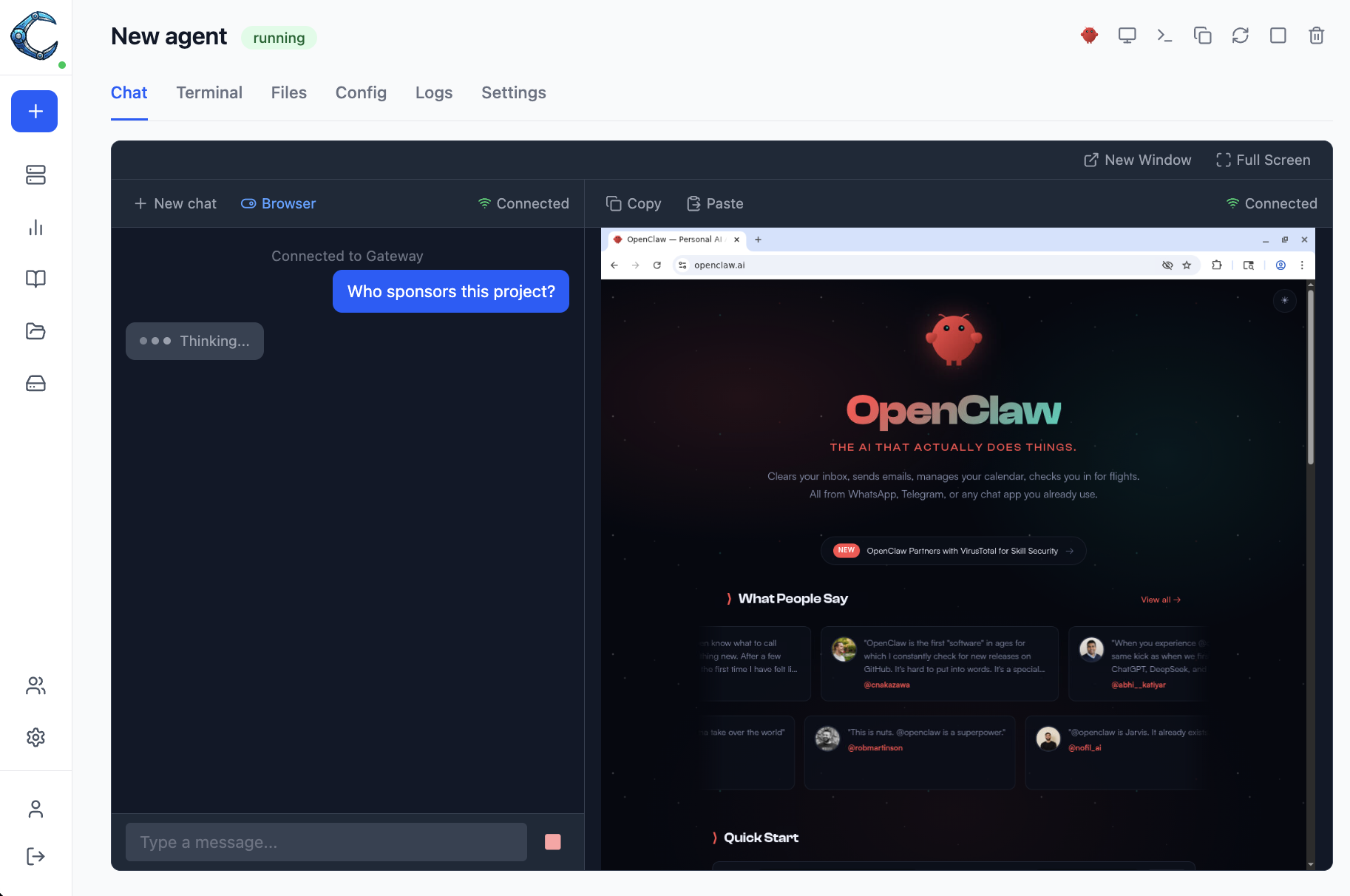
Section titled “Webchat”Click Chat on any running instance to open a conversation with the OpenClaw agent. The chat panel can run side by side with the embedded browser so you can watch the agent work while you talk to it. Toggle between Chat + Browser and Chat only views using the layout switch at the top of the chat panel.
Live logs
Section titled “Live logs”Click Logs on the instance detail page to stream the container’s stdout/stderr in real time.
Session limits and access control
Section titled “Session limits and access control”- Admins can access any instance.
- Regular users can only access instances explicitly assigned to them by an admin.
See Authentication for user management details.